A lot of Suno and Udio creators can finish the music faster than they can finish the visuals. The song is ready. The cover art is ready. Then the video work starts to sprawl: generate a few clips, reject half of them, open CapCut, line things up, fix weird cuts, make a thumbnail, export, watch it again, and find another problem.
If that is the part slowing you down, reduce the amount of editing before the project ever reaches an editor.
Why short AI clips become a time sink
Short AI video clips look useful at first because each one is quick. The hidden cost shows up when you need a full song video. A three-minute track can need dozens of shots if every clip is only a few seconds long.
Creators are already talking about this problem. In one Suno community thread, the question was basically: what are people using for music videos that does not take forever? In another, creators compared the quality and weirdness of AI visuals for YouTube and Spotify. These are practical complaints from people with finished songs. They want something better than a static cover, but they do not want to spend the weekend assembling a rough music video.
Start with the release asset you already have
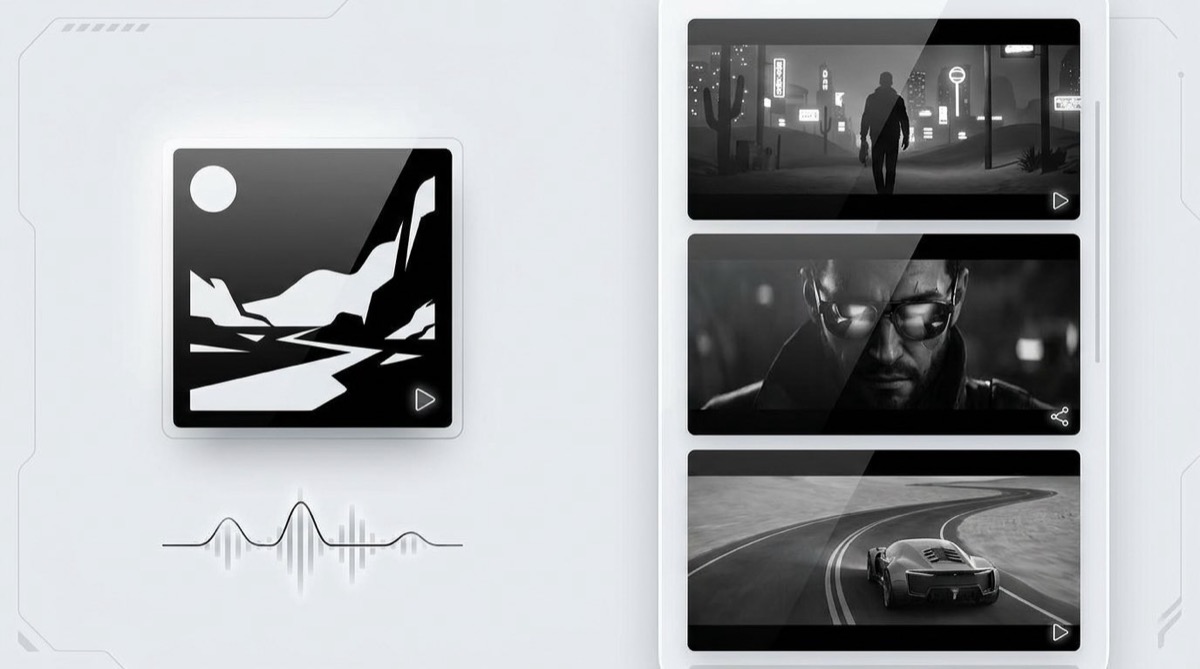
The fastest path is usually to use the image that already belongs to the song. That might be the Suno cover, an artist photo, a Midjourney image, or a single frame that captures the mood of the track.
That image gives the video a center. It tells the generator what world the song lives in. It also keeps the finished result closer to the release identity, which matters when the same track has to show up on YouTube, Shorts, Reels, TikTok, and a landing page.
A simple test: if someone saw the video without audio, would it still feel like it belongs to your song? If the answer is no, the visuals are probably drifting too much.
Use the song structure as the plan
A music video does not need a complicated script to feel intentional. It needs a basic rhythm: intro, verse, lift, chorus, bridge, final section. The exact names do not matter. What matters is that the visual energy changes with the song.
For a quiet intro, you might want slower shots and more atmosphere. For the chorus, the video can open up. For the final section, it can return to the strongest image or push the story forward. This is the part that makes a full-song video feel like a video, not a folder of unrelated clips.
A low-editing workflow
- Finish the audio first. Use the version of the song you actually plan to publish.
- Pick one visual anchor. Choose the cover art, artist image, or character image that should define the look.
- Generate the video around the track. Let the tool create a shot sequence that follows the song instead of prompting every shot yourself.
- Review for continuity. Check that the world, character, and mood stay connected across the video.
- Export one MP4. Use that file wherever the song needs motion.
This still leaves room for taste. You can reject a version that feels wrong, or trim a final export if you want tighter timing. The difference is that you are reviewing a whole video instead of hand-building the whole video.
Where SceneLore fits
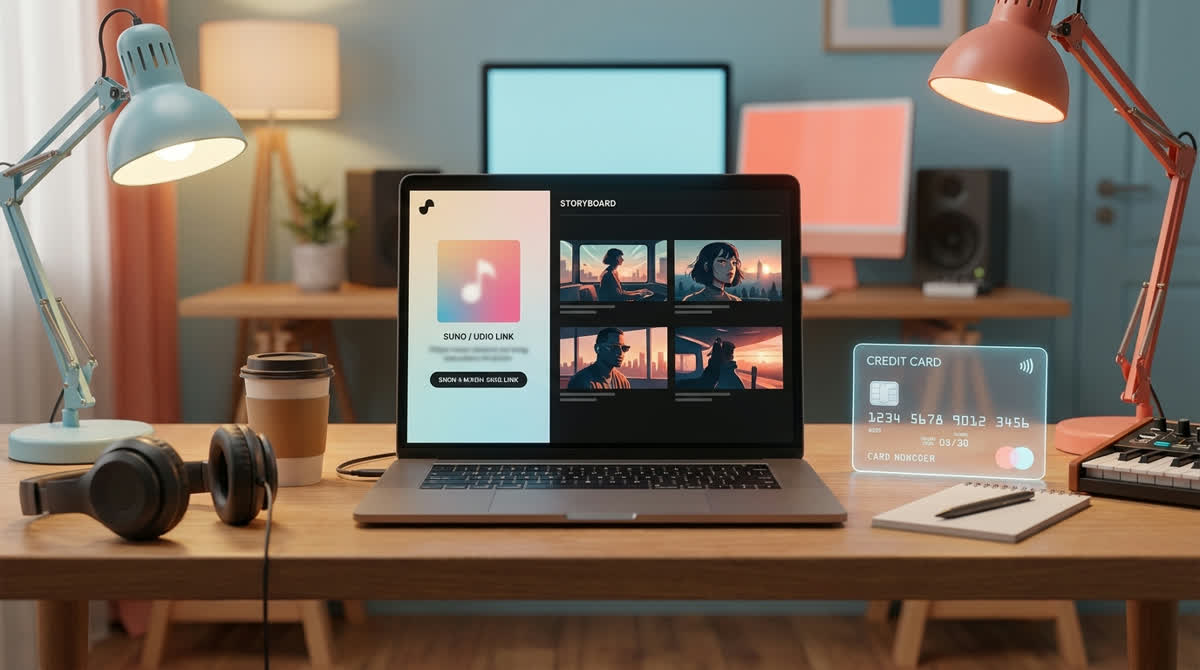
SceneLore is made for creators who already have the music and want the visual side to stop eating the release schedule. You can start with a song or a single image, then generate a full-length video built around that source.
The useful part is continuity. If your cover art has a specific character, place, or color palette, SceneLore can use that as the visual anchor so the result feels like one music video instead of a random set of prompts.
If your problem is specifically that a Suno cover video keeps downloading as a static image, read the related guide on making a real MP4 from your Suno song. If you want product details before trying it, the SceneLore FAQ covers video length, prompting, consistency, pricing, and credits.
What to avoid
Do not start by generating ten unrelated clips just because the prompts sound cool. That usually creates more editing work, not less. Also avoid changing the main character or style every few seconds unless that is the actual concept of the video.
The release will usually feel stronger if you keep one visual world and let the song create the movement. Viewers can forgive a simple story. They notice when every shot feels like it came from a different video.
Sources and useful context
The demand is visible in creator discussions, including a Suno thread asking what people use for music videos that do not take forever and another discussion about visuals for Spotify and YouTube. Those threads point to the same need: finished songs need better motion assets without forcing musicians to become full-time video editors.
FAQ
Can I make an AI music video without editing?
Yes. The easiest route is to start with the finished song and one visual anchor, then use a tool that generates a connected shot sequence instead of asking you to edit many short clips by hand.
What should I use as the visual anchor?
Use the image that already belongs to the release: cover art, an artist photo, a character image, or a still that captures the song's mood.
Is this workflow useful for Suno and Udio songs?
Yes. It works well for Suno and Udio creators because those songs often already have a finished mood and structure, but need a video asset that can be reused on YouTube, Shorts, Reels, TikTok, and release pages.
Turn the song into a video file
Upload your track or image to SceneLore and make a full-length AI music video without turning the release into an editing project.