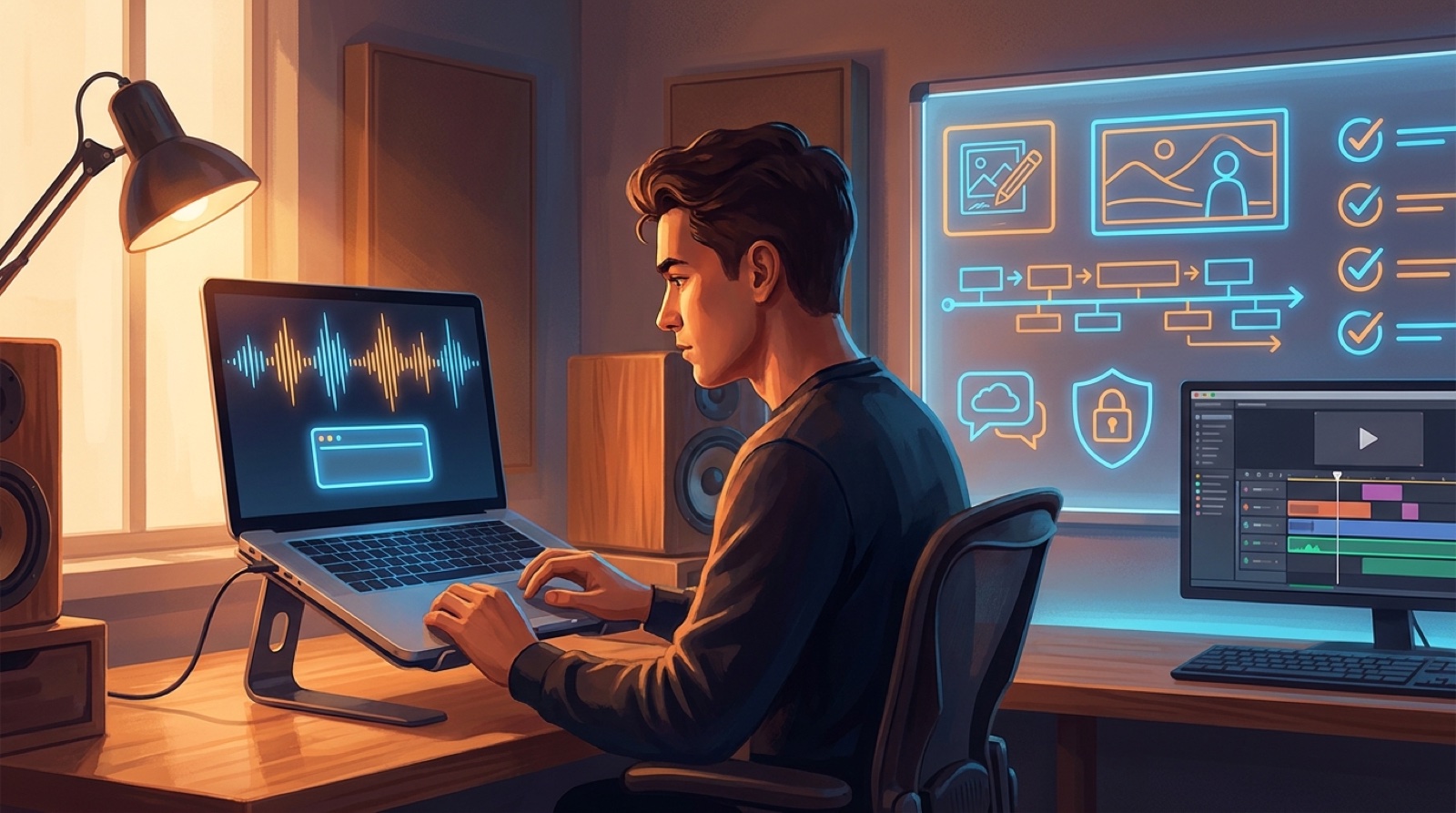
A Suno link to music video workflow sounds perfect when the song is already finished. Paste the link, pull in the track, and skip the messy handoff between audio, artwork, and video.
That shortcut is useful. It can reduce friction at the start. It does not decide what the viewer should see first, what the chorus should feel like, or how the finished upload should look beside the rest of your channel.
If you treat the link as the whole plan, the video can still feel like an imported file with motion added to it. The better move is to use the Suno link as a starting point, then build a release package around the song.
Use the link for import, not direction
Tools that start from a song URL are appealing because they remove a boring step. A page such as Freebeat's Suno to video workflow shows why creators want this: the song is already online, so the video tool can begin with less uploading and fewer details to retype.
That is a good import path. It is not the same as direction.
The link can tell a tool where the audio lives. It may also carry a title, cover image, or basic song details. It cannot decide whether the video should open on the artist, the album cover world, a lyric moment, a fictional location, or a simple performance setup.
Before you render, write one sentence for the video: what should people understand from the first frame? If the answer is only the song exists, the release needs a stronger visual promise.
Pick the visual anchor before the tool starts guessing
A visual anchor is the element that holds the full video together. It might be the cover image, a singer character, a room, a city, a mask, a logo-like object, or a color pair that belongs to the project.
The anchor matters even more when the workflow starts from a link. Without it, the video tool may fill the song with unrelated shots that match the mood for a second and then drift.
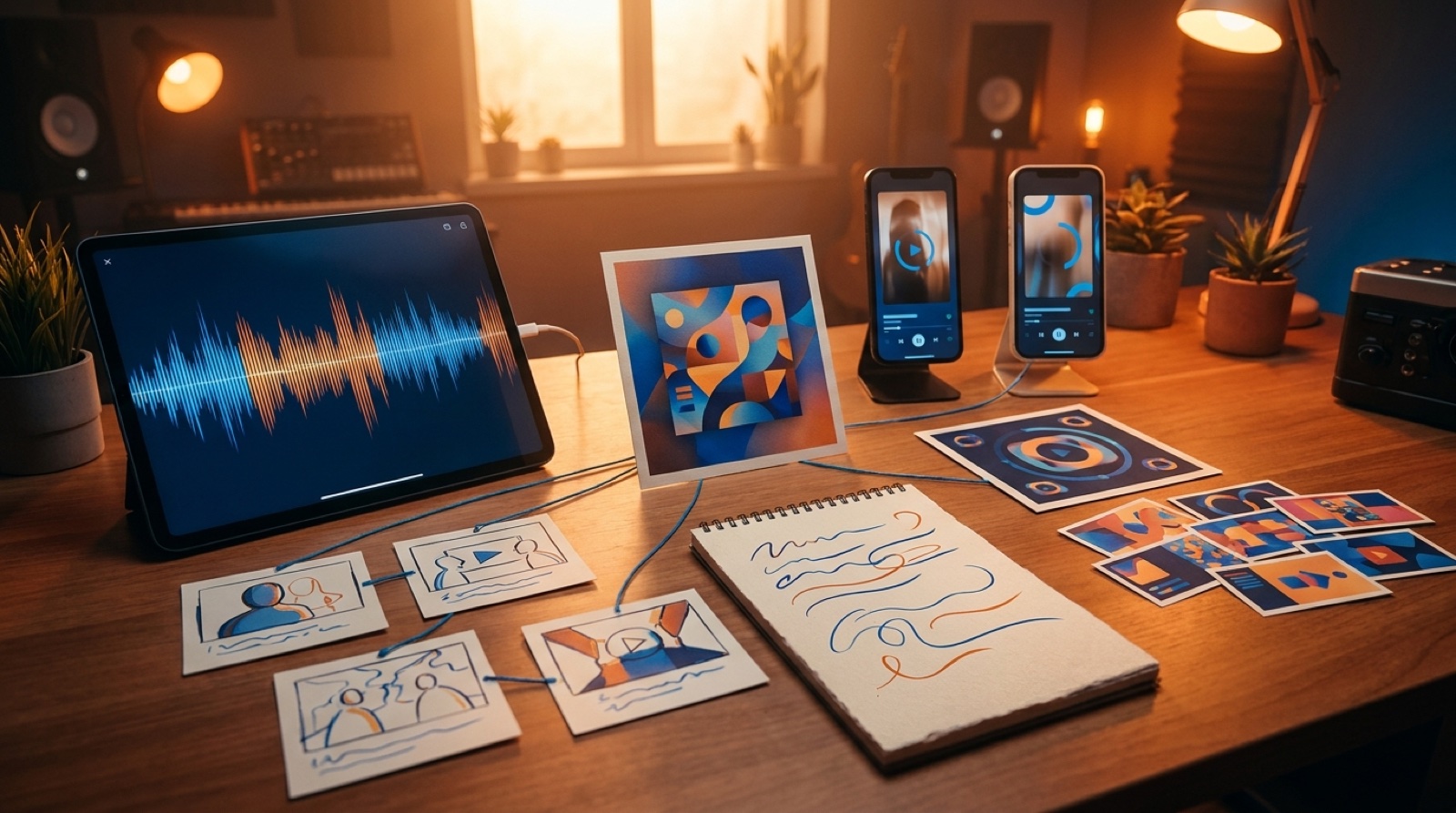
Choose the anchor before importing the song. If the Suno cover art is strong, use it as the source of the world. If the cover is weak, make a better still first. The opening frame, thumbnail, chorus scene, and short clips should all feel connected to that same anchor.
For a dark synth track, the anchor might be a blue apartment window and one warm stage light. For a lofi channel, it might be a desk, a window, and one recurring character. Simple is easier to repeat.
Plan the first 30 seconds like a promise
The first 30 seconds decide whether the viewer gives the song enough time to work. A link-import workflow can get the audio into the tool, but it will not automatically make the opening feel intentional.
Start with the first frame. It should tell the viewer what kind of world they are entering. Then choose the first motion. A slow camera push, a hand touching a speaker, a city light turning on, or a performer stepping into frame can do more than a random burst of effects.
Use the intro to set up the chorus. If the chorus is the emotional payoff, the opening should plant one image that can return with more energy later. That makes the video feel directed instead of assembled.
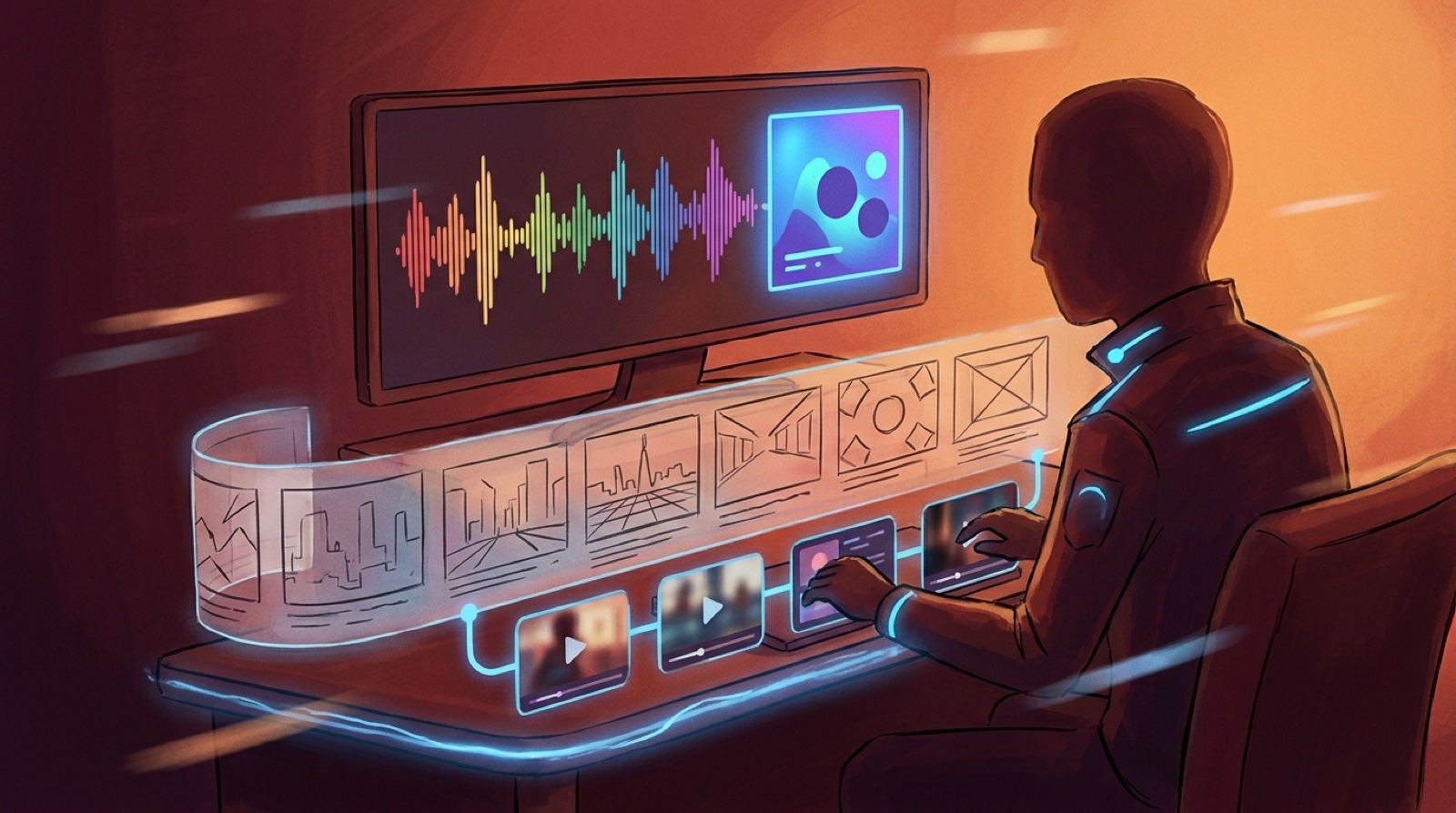
This is where SceneLore can help. A finished song or anchor image can become a connected full-length video direction, so the import step leads into a watchable release instead of a loose stack of clips.
Build the upload package before you render
A music video is not finished when the video file exports. It still needs the assets that make the upload feel ready.
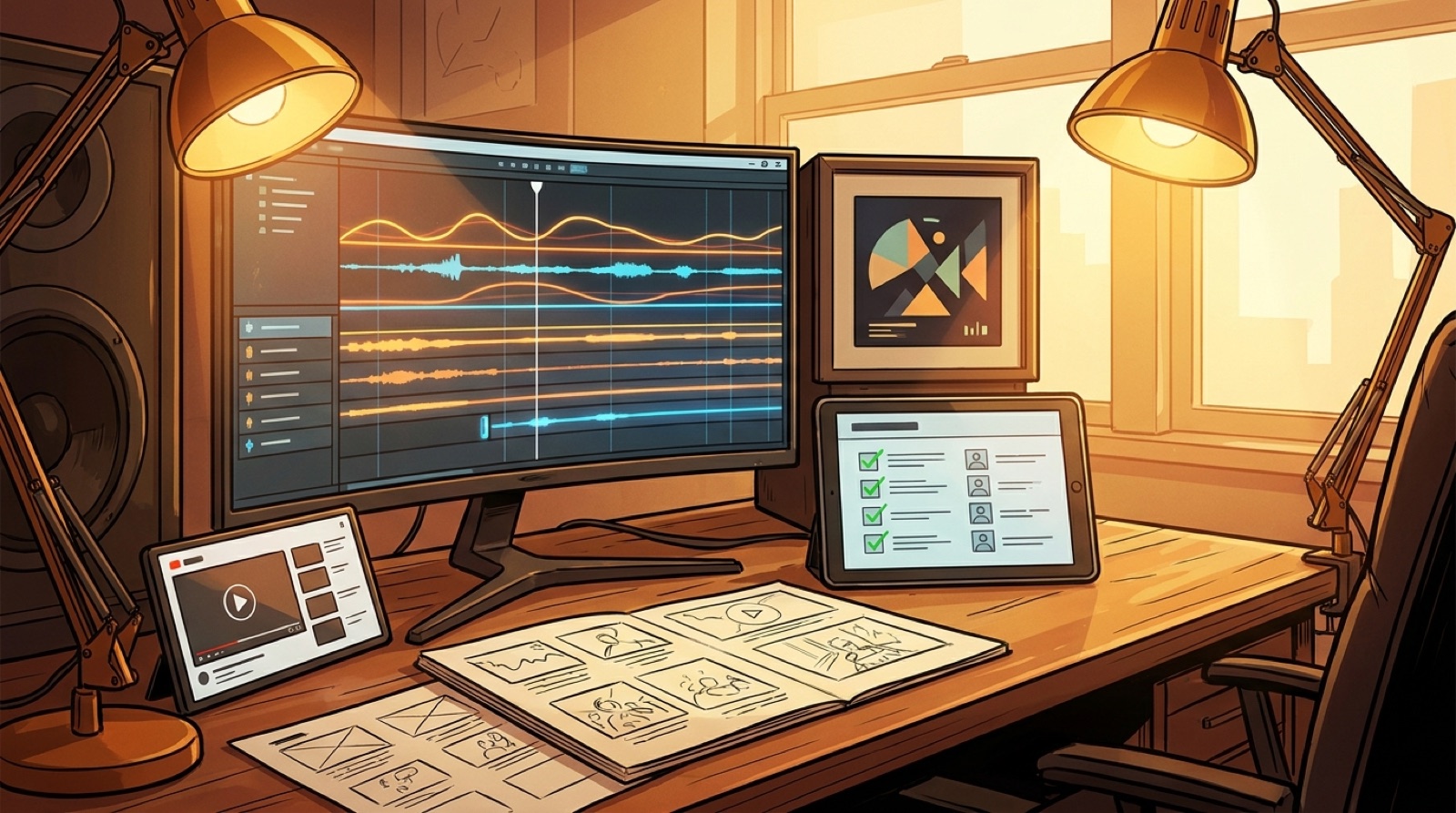
Before you generate the final version, write down the upload package:
- full horizontal video for YouTube
- thumbnail based on the strongest frame
- short vertical clip from the chorus or opening hook
- description with credits, AI-use note, and link to the song
- caption or lyric moments if the words carry the hook
- cover image or stills for social posts
- archive folder with final audio, video, thumbnail, prompts, and notes
YouTube's own upload guidance is a good reminder that publishing is more than selecting a file. Title, description, thumbnail, audience settings, and visibility all shape how the release appears.
If those pieces are not planned, a fast Suno link workflow can still end with a weak upload.
Use song details, but do not let them trap the video
A Suno page may already have a title, lyrics, genre tags, artwork, and a public link. Use those details as clues.
The title can suggest the main image. The lyrics can suggest moments for the first verse and chorus. The genre can guide color, speed, and camera distance. The cover art can set the first frame or thumbnail.
Keep control of the final shape. A metal track does not need constant fire. A sad pop song does not need rain in every scene. A funny song does not need every image to act like a joke. The release should feel like someone listened to the song and made choices.
Write a short direction note before you import: keep the cover image mood, open on the main character, let the chorus widen, avoid random genre cliches. That note will save you from accepting the first thing that moves.
Decide where the video will live
The right video changes based on the destination. A YouTube upload needs a full watchable arc. A YouTube Short or Reel needs a fast visual hook. A Spotify Canvas loop needs a simple repeated motion. A release page needs a clean hero clip or full embed.
Do not wait until the export is done to make that decision. Choose the main destination first, then plan the supporting assets around it.
If YouTube is the main home, build the full horizontal video first. Then pull the strongest frame for the thumbnail and one chorus moment for short-form clips. If social is the main test, start by finding the 8 to 15 seconds that sell the song fastest, then expand into the full video once the visual hook is clear.
The Suno link gets the song into motion. The destination decides what kind of motion is useful.
A simple workflow for Suno link video tools
Use this order when a tool asks for a Suno link:
- Save the final Suno link, audio file, lyrics, and cover art.
- Choose one visual anchor for the release.
- Write a one-sentence promise for the first frame.
- Pick the main destination: YouTube, Shorts, Reels, Canvas, or release page.
- Map the intro, chorus, and ending to simple visual moments.
- Import the link or audio only after the release plan is clear.
- Render, then check the thumbnail, description, caption moments, and archive folder before upload.
This keeps the link in its proper place. It starts the workflow, then the release plan carries the song the rest of the way.
If you already have a finished Suno song, cover image, or public link, create your first video in SceneLore. Use the link to move faster, then give the release a visual plan people can actually watch.
FAQ
Can I turn a Suno link into a music video?
Yes, some tools can start from a Suno link or song page. The stronger workflow is to use the link as the import step, then plan the visual anchor, first frame, scenes, thumbnail, captions, and upload package.
What should I plan before using a Suno link video tool?
Plan the video format, visual anchor, opening frame, chorus payoff, thumbnail, description, disclosure note, captions, and short clips before you render the full release.
Does a Suno URL replace the need for cover art?
No. A link can carry song details, but cover art or another strong image usually gives the video a clearer visual world and a better thumbnail starting point.
How does SceneLore fit this workflow?
SceneLore helps creators turn a finished song or image into a connected full-length music video, then use that video as part of a wider release package.
Related guides
Turn the link into a real release
Use SceneLore to turn a finished Suno song, cover image, or public link into a full music video with a stronger first frame and release package.
Create Your First Video