A finished song often has one strong visual already: the cover. It might be a portrait, a character, a city at night, a weird object, or a clean abstract design. That image did the hard work of setting the mood before anyone pressed play.
The mistake is treating the cover as a static placeholder. A still image can work for a quick upload, but it asks the listener to stare at the same frame for the whole track. If the song has movement, tension, a chorus, or a story, the visual side should carry some of that weight too.
Why the cover is a good starting point
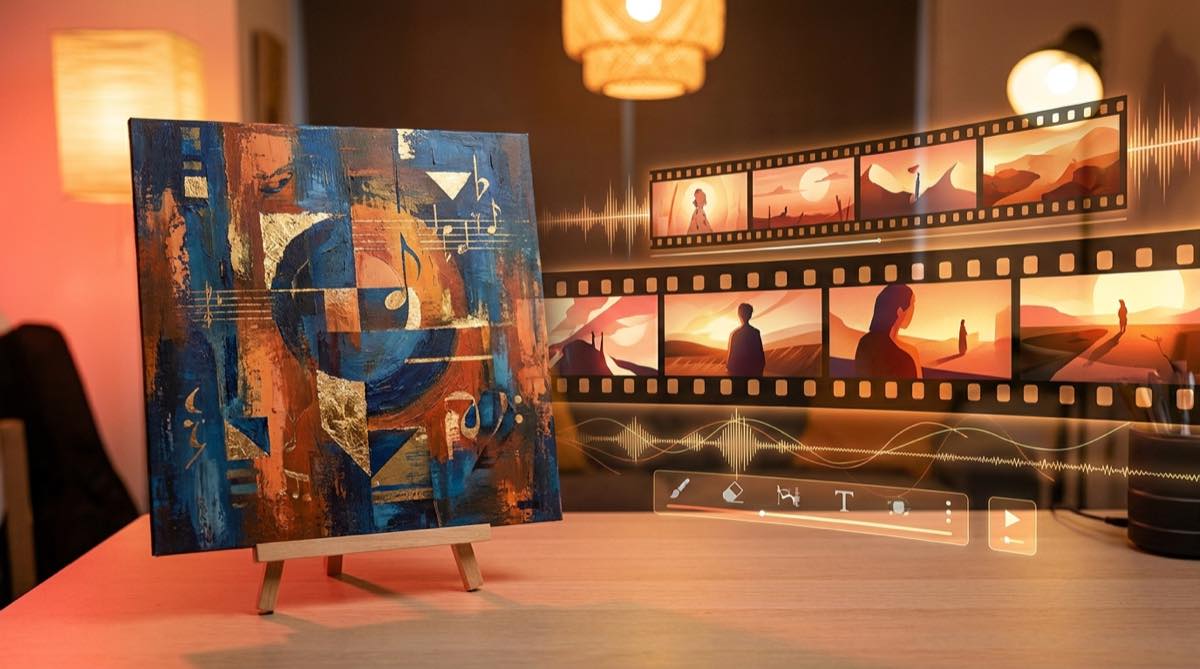
The cover is already part of the release identity. It has the colors, the subject, and the first impression. Starting from it is usually better than asking an AI video tool for random scenes that only loosely match the song.
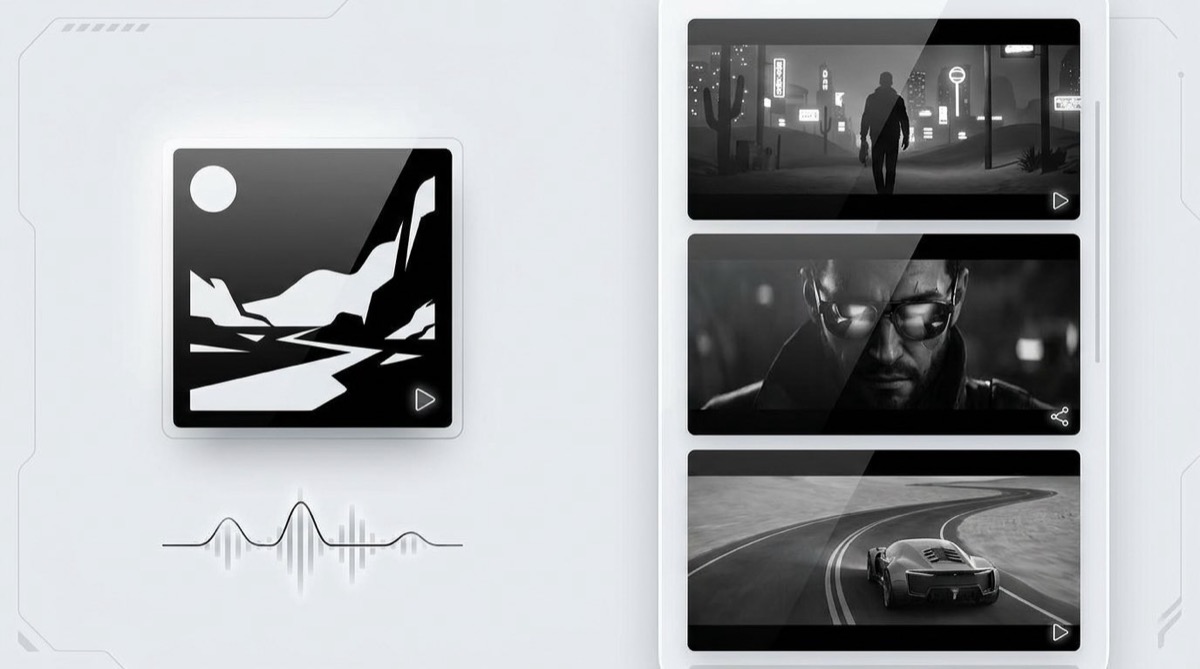
A cover also gives continuity. If the artwork shows a singer in a red room, a car on a desert road, or a hand-drawn creature in a bright city, the video can return to that world in different ways. You get variation without losing the thread.
A useful rule: if the first frame of the video could sit next to the cover on a release page and feel related, the visual direction is probably working.
What to prepare before generating
Use the final version of the track, not a rough export. The pacing of the video should follow the song you plan to publish.
Use the cleanest version of the cover art you have. If the artwork has text, that is fine for your release cover, but it may not be ideal as a generated video source. Text can warp when the image starts moving. If you can, keep a text-free version of the artwork for video generation and use the designed cover for thumbnails and platforms.
Write down the parts of the cover that matter. Maybe it is the face, the black-and-gold palette, the rainy street, or the strange homemade sci-fi mood. The goal is to protect the identity of the image while letting the video expand around it.
A simple album-cover-to-video workflow
- Pick the cover image. Choose the version that best captures the song's mood.
- Use the finished audio. The video should respond to the actual release track.
- Set the visual direction. Describe what should stay consistent: character, color, location, era, genre, or style.
- Generate a full shot sequence. Build the video as a connected piece, not as a pile of unrelated clips.
- Export a real video file. Use an MP4 for YouTube, Shorts, Reels, TikTok, release pages, and ads.
This keeps the process grounded. The cover is the source. The song is the structure. The generated shots are there to add motion and scene changes without inventing a different visual identity every ten seconds.
How SceneLore uses the cover
SceneLore is built for songs and single images. That makes it a natural fit when the cover art is already the strongest visual asset you have.
Upload the cover image or track, then generate a full-length music video around it. SceneLore is useful when you want the video to feel like it came from the same release artwork, with a connected visual world and an export you can publish.
If you are working with Suno or Udio, this is also a way to stop relying on static cover uploads. The related guide on making an AI music video without editing goes deeper on reducing clip-by-clip production work.
Where to use the finished video
YouTube is the obvious place, because a song needs to become a video file before upload. YouTube's own help docs say audio files such as MP3 and WAV cannot be uploaded to create a YouTube video, and the supported formats page includes MP4 as a video upload format.
The same finished video can also work as a release page asset, a cropped short-form clip, a teaser for social posts, or a visual loop for ads. You may still cut shorter versions later, but the full video gives you the master asset first.
What to avoid
Avoid changing the visual idea too often. If the cover has a specific character, do not turn that character into a different person every few shots. If the cover has a careful palette, avoid letting every scene pick a new color system.
Also be careful with tiny text, logos, and detailed typography inside the image. AI video can distort those details. If the text is important, keep it for the thumbnail or title card rather than asking the moving video to preserve every letter.
Sources and useful context
YouTube's upload documentation says audio files cannot be uploaded to create a YouTube video, and its supported file formats page lists common video formats including MP4. Creator discussions in r/SunoAI also show the demand for better visuals, including questions about how people make visuals for Spotify and YouTube.
FAQ
Can I turn album cover art into a music video?
Yes. Use the cover as the visual anchor, pair it with the finished song, and generate a connected shot sequence that keeps the same mood across the video.
What kind of album cover works best?
The best cover has a clear subject, mood, color palette, or setting. A face, character, room, vehicle, city, landscape, or strong abstract style can all work.
Can I upload audio directly to YouTube?
No. YouTube requires a video file, so creators who only have an audio track need to turn the song into a video format such as MP4 before uploading.
Turn your cover into a full-song video
Upload your track or cover image to SceneLore and turn the artwork into a connected music video you can publish.