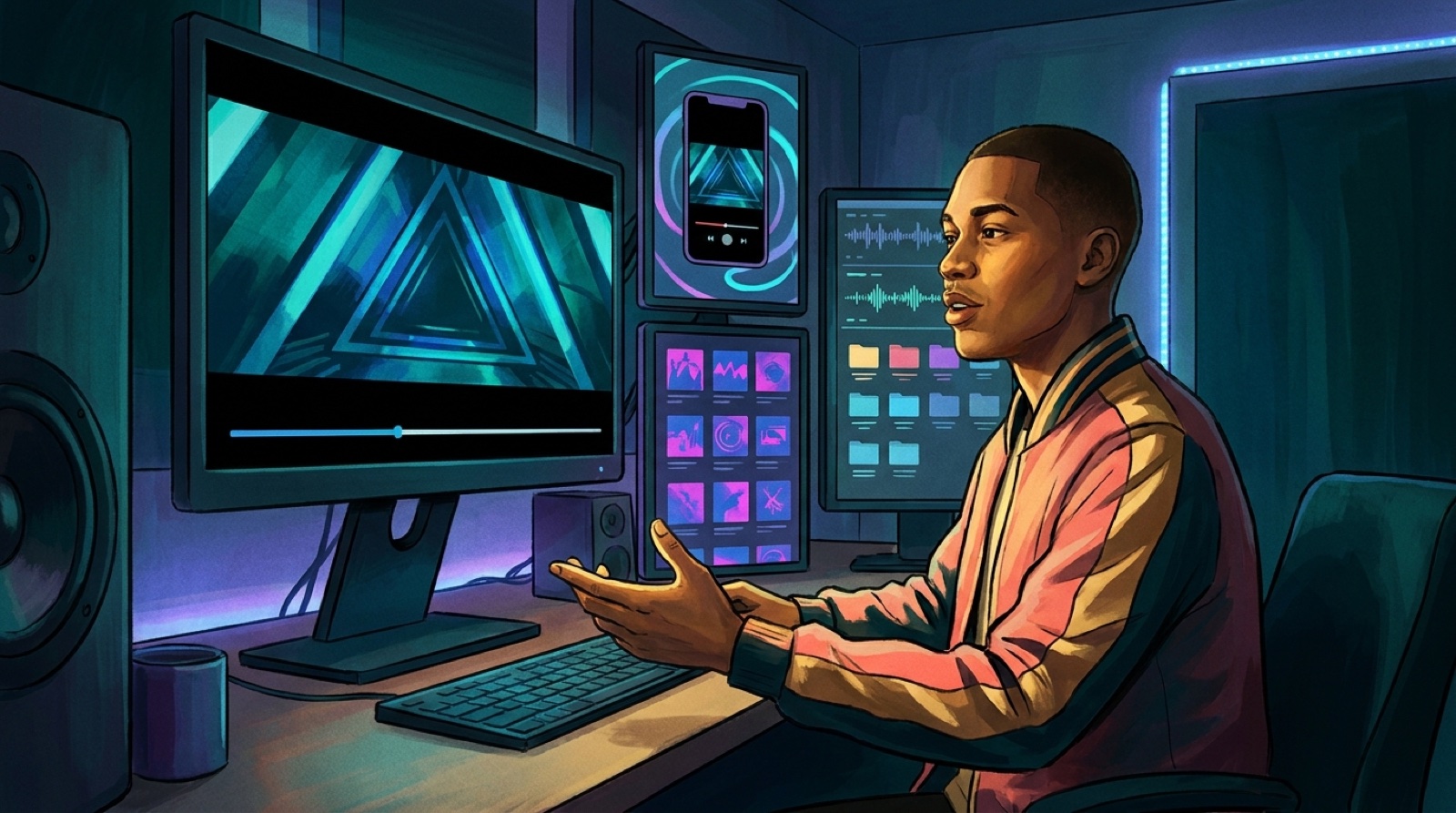
AI music video export formats should be chosen before the video looks finished. If you wait until upload day, one song can turn into a messy set of emergency crops.
A release rarely lives in one place. The full video may go to YouTube. The chorus may become Shorts and Reels. A small loop might sit beside the track. The thumbnail has to sell the mood before anyone hears the first note.
The easiest way to handle that is to plan the release package first, then generate and export around it.
Start with the main release job
Pick the main place where the song needs to be watched from beginning to end.
For most AI music creators, that is a 16:9 YouTube music video. It gives the song room to breathe, lets you build a visual arc, and works well on desktop, TV, and embedded release pages.
YouTube says the standard computer aspect ratio is 16:9, while vertical and square uploads adapt to the player and device. That is useful, but it does not mean every release should start as a vertical clip. A full song still needs a format that supports the whole track.
Use 16:9 as the anchor when the video is meant to carry the release. Then build the smaller assets from the same visual world.
Plan vertical clips before important details get cropped
Short-form clips are usually where the chorus, first hook, or strongest visual moment gets tested.
The mistake is making a full widescreen video, then discovering the singer's face, lyric moment, or main object sits too far to the side for a 9:16 crop. By then, every vertical version feels like a compromise.
Before generation, mark the shots that may become clips. Keep the subject closer to the center. Leave room for platform UI near the edges. Avoid tiny fake interface details or small text that will fall apart on a phone.
You can still make the full video cinematic. Just give the important chorus moments a vertical-safe composition.
Treat loops as a different kind of asset
A loop has a different job from the full music video.
A full video can change scenes, build tension, and pay off near the chorus. A loop needs to feel stable fast. It should hold the mood without asking the viewer to follow a plot.
For Canvas-style and release-page loops, choose one strong visual anchor: the artist character, a room, an object, a road, a skyline, or the cover image in motion. Keep movement simple enough that it can repeat without feeling broken.
If the full video has a dramatic ending, save that ending for the full watch. Pick the visual that best represents the song at a glance.
Make the thumbnail a planned export
The thumbnail should not be whatever frame looks least strange after the render.
Plan a thumbnail candidate while you choose the video direction. It can be a clean first frame, a stronger crop from the chorus, or a separate still that uses the same character, lighting, and mood.
Keep it readable at phone size. Avoid fake readable text inside AI art. If you need words, add them later with a real design layer.
A good thumbnail and first frame should feel connected. The viewer should not click one mood and land in another.
Save a release-page version
Release pages, press notes, and artist sites often need a lighter embed or preview. That asset does not need to carry every second of the song.
Use the release-page version to show the world quickly. A short excerpt, clean cover animation, or selected video section can work better than embedding a heavy full-length file everywhere.
Name the file clearly and keep it with the rest of the release assets. Future you should not have to guess which version was meant for YouTube, which one was the vertical chorus clip, and which one was the page preview.
Use one checklist before export day
Before you render the final package, write a simple export list:
- full 16:9 music video for YouTube and embeds
- vertical clip candidates for Shorts, Reels, and TikTok
- loopable mobile asset for track pages or promos
- thumbnail or first-frame still
- release-page preview or lightweight embed
- archive folder with the prompt, cover image, audio export, and final files
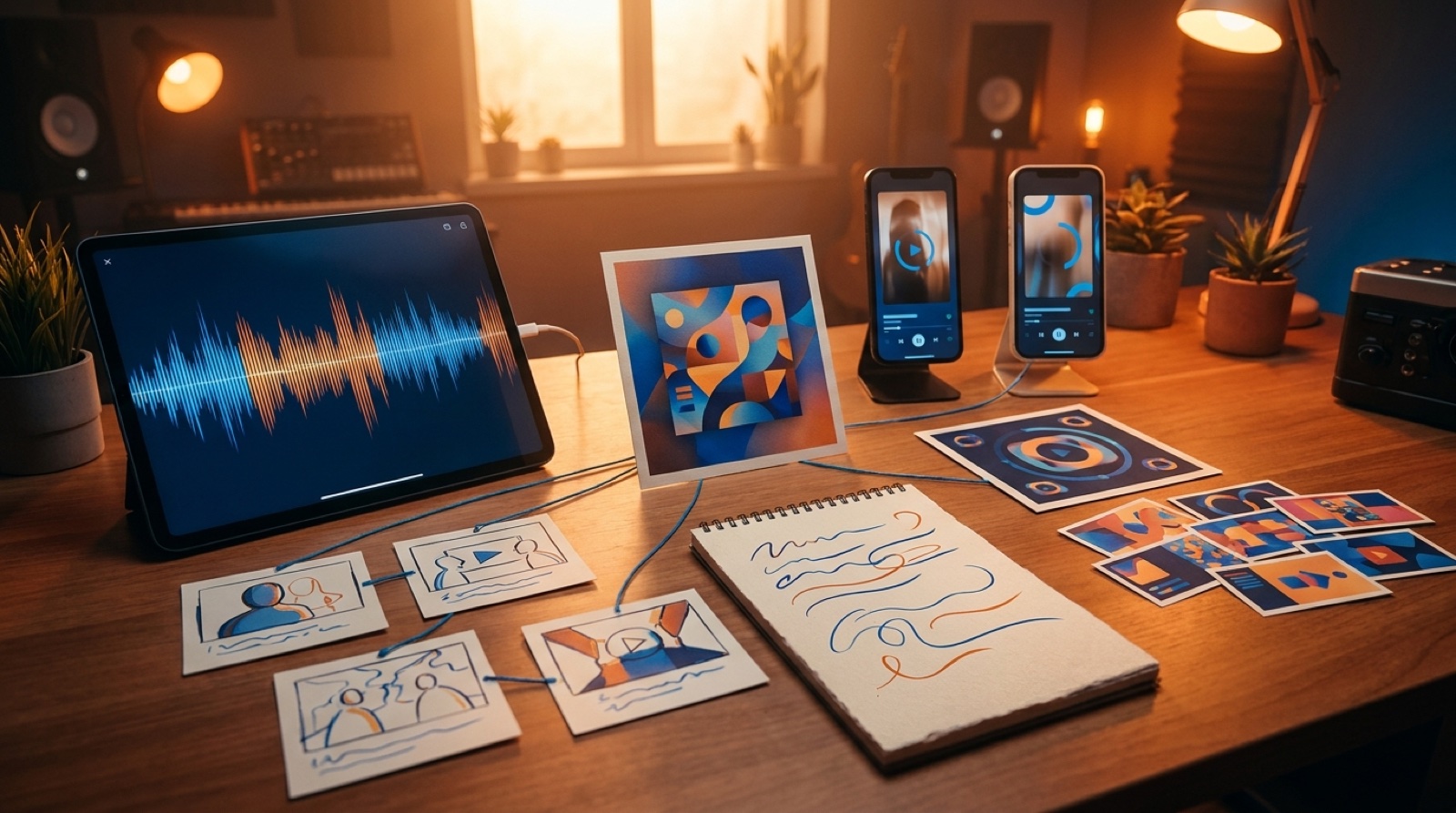
This saves time because each format comes from the same release idea. The formats can change shape, but they should still feel like the same song.
If you already have a finished track or cover image, SceneLore can help turn it into a connected full video and release assets from one visual direction. Create your first video, then export the formats your release actually needs.
FAQ
What AI music video export formats should I plan first?
Start with a full 16:9 video for YouTube, then plan vertical clips, a loopable mobile asset, thumbnail artwork, and any release-page embed you need.
Can I crop one AI music video for every platform?
You can reuse one visual world, but a straight crop often loses faces, captions, and chorus moments. Plan safe framing before the main render.
Should I export vertical clips before the full music video is done?
Choose the vertical moments early, but export the final clips after the full video direction is locked so the short clips match the release.
How can SceneLore help with export planning?
SceneLore helps turn a song or cover image into a connected full music video and release assets, which makes it easier to plan formats from one visual world.
Related guides
Turn one song into a cleaner release package
Use SceneLore to turn a track, cover image, or visual anchor into a full music video and release assets that feel connected.
Create Your First Video