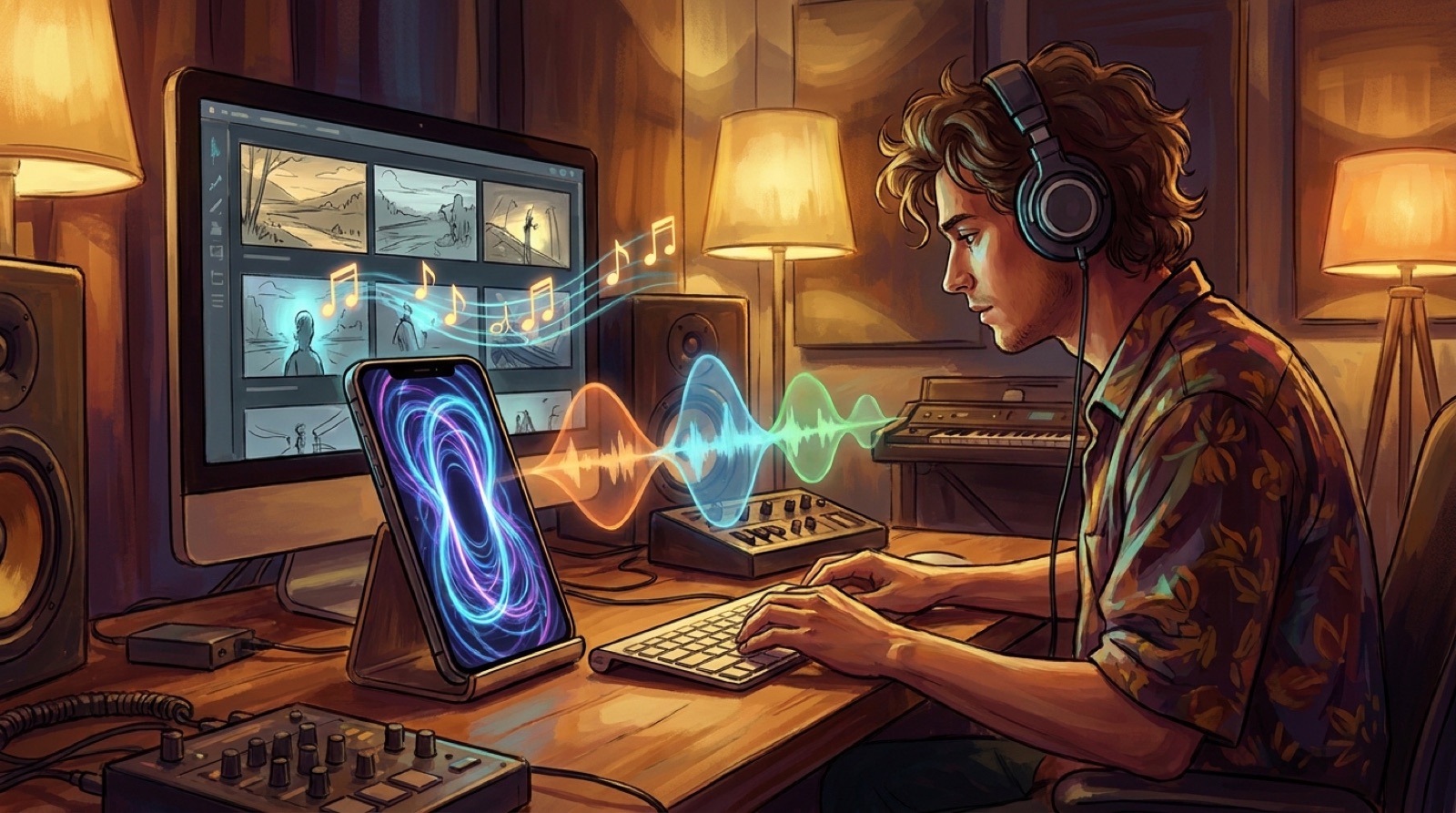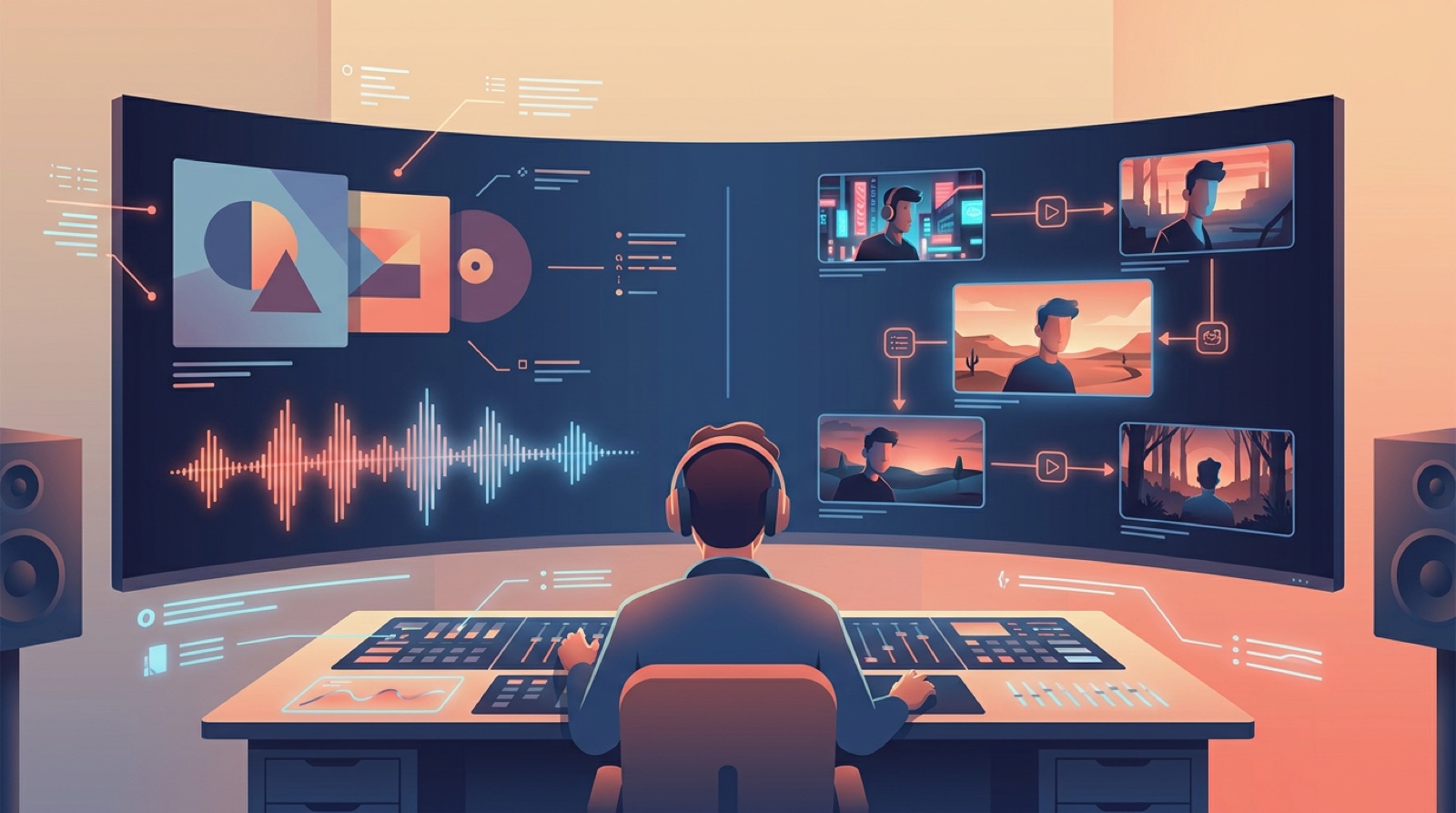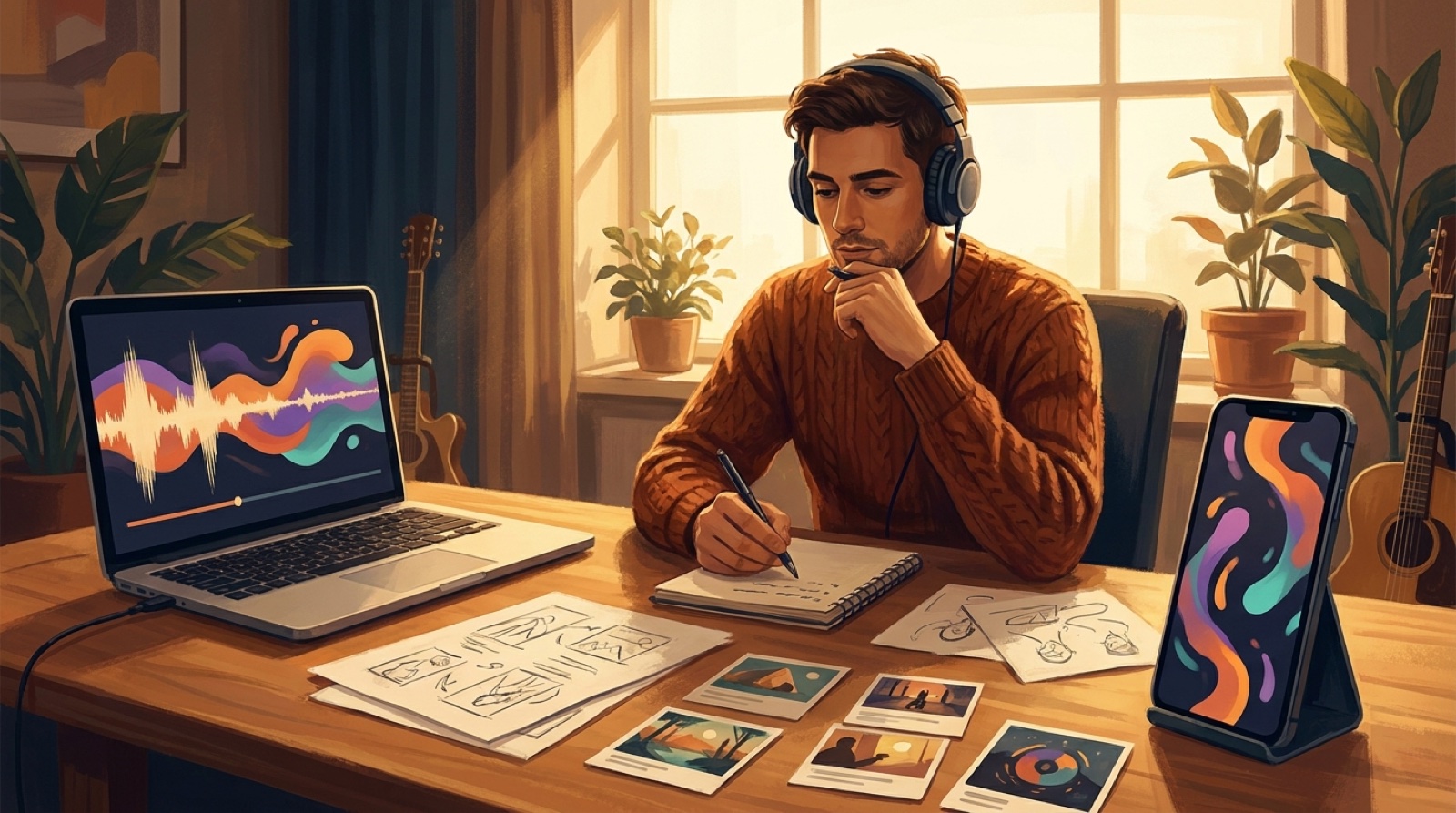
A Spotify Canvas loop for AI music works best when it feels like a small piece of the release, not a rushed animation pasted onto the song. The loop does not have to tell the whole story. It has to make the listener feel that the song has a world around it.
That matters more for AI music than many creators want to admit. A finished Suno or Udio track can sound polished, then lose trust when the visual layer feels generic. The cover art says one thing, the YouTube video says another, and the Canvas loop looks like a random moving wallpaper.
Treat the Canvas as a tight release asset. Give it one clear visual idea, make the motion repeat cleanly, and keep it connected to the rest of the song package.
Start from the song's visual anchor
Before making a loop, choose the visual anchor for the release. This can be the cover image, the main character, a color mood, a location, a symbol, or a scene from the full video.
The anchor keeps the Canvas from drifting into stock AI motion. If the song cover shows a late-night train platform, the Canvas should probably stay in that world. It could show passing light, a coat moving in the wind, or a slow camera push toward the character. It should not suddenly become neon smoke, a dancing robot, or a mountain scene that has nothing to do with the track.
If you already have a full video, pull the Canvas from the strongest quiet moment. If you only have cover art, animate one detail that already belongs to the image.
Keep the idea smaller than the full video
A Canvas loop is not a miniature music video. Spotify describes Canvas as a short looping visual that plays while a track is open. That format rewards restraint.
Use one of these simple ideas:
- a slow camera push into the cover world
- a repeating light change that matches the chorus mood
- a character turning slightly, then returning to stillness
- a close-up of an object that belongs to the lyrics
- a subtle scene motion that loops without a hard jump
The loop should not fight the song. If the track is intimate, the Canvas can be quiet. If the track is loud and cinematic, the motion can be bigger, but it still needs one idea.
Make the loop connect to the bigger release
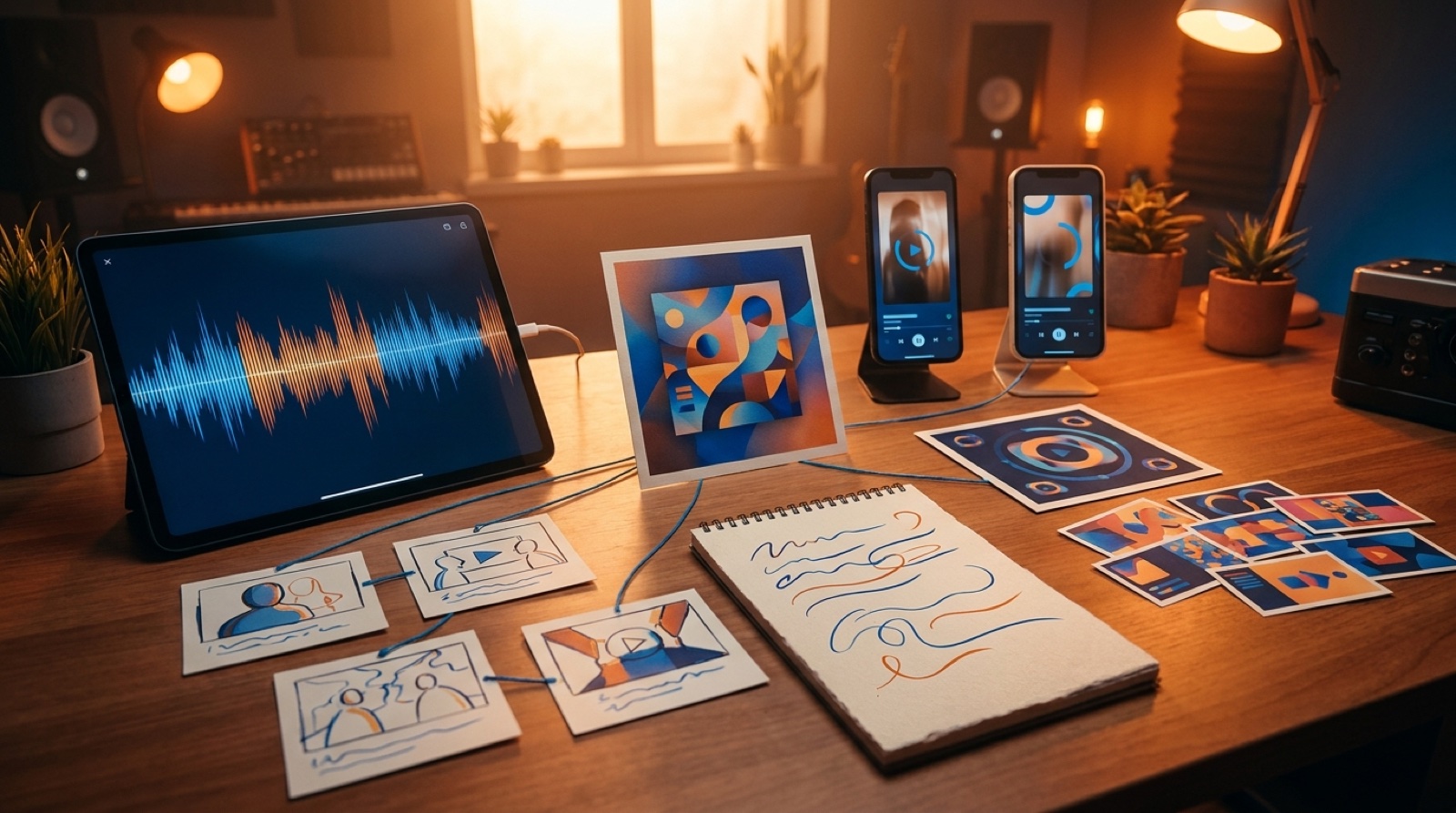
The easiest way to make a Canvas feel planned is to connect it to the larger release package. Use the same color palette as the cover art. Keep the same character or place from the full video. Match the first frame to the thumbnail when possible.
This is where AI music releases often feel cheaper than they are. The creator makes each asset in a separate session, with a different prompt and a different mood. The result may be technically fine, but it does not feel like one song.
SceneLore's guide to Spotify Canvas vs YouTube video for AI musicians is useful here. A full video has room for structure, cuts, and a build. The Canvas only needs to remind listeners of that world while the song plays.
Check the loop before uploading
Watch the loop several times without the timeline controls. The second pass tells you more than the first. A rough jump, strange face, or busy motion can feel worse every time it repeats.
Use this quick check:
- Can someone understand the mood in one second?
- Does the first frame look good as a still image?
- Does the final frame return cleanly to the first frame?
- Is there any fake text, warped logo, or odd face?
- Does it match the cover art and main video?
If the loop fails one of those checks, simplify it. Remove a moving element, slow the camera, or pick a cleaner moment from the release world.
Use Canvas as part of the launch, not the whole launch
A Canvas loop can make a streaming page feel more alive, but it should not carry every visual job. Bigger AI music releases still need a YouTube video, short clips, a thumbnail, and a place to send people when they want the full story.
That does not mean every song needs the same amount of work. A small track can use a strong cover and a clean Canvas. A lead single should probably get the full treatment: cover art, full video, Shorts clips, Canvas loop, and release notes.
The related guide on visualizer vs music video can help decide when a loop is enough and when the song deserves more.
A simple Canvas plan
For your next AI song, keep the Canvas plan this small:
- pick the cover art or full-video scene as the anchor
- choose one motion idea that can repeat cleanly
- keep the color and character rules from the release
- watch the loop three times in a row
- save the file with the rest of the release assets
That is enough to make the loop feel intentional without turning a tiny asset into another production project.
FAQ
What should a Spotify Canvas loop show for an AI music release?
A Spotify Canvas loop should show one clear visual idea from the release world: a character, scene detail, cover-art motion, light shift, or small camera move that can repeat without feeling distracting.
Is a Canvas loop enough for every AI song?
No. A Canvas loop is useful for streaming context, but bigger releases still benefit from a full video, thumbnail, short clips, and a clear visual system around the song.
Build one visual world for the whole release
Bring your finished song or cover image into SceneLore and create a full video around one visual anchor. Then reuse that world for your Canvas loop, thumbnail, and short clips.
Create Your First Video